
Pin it to your taskbar.
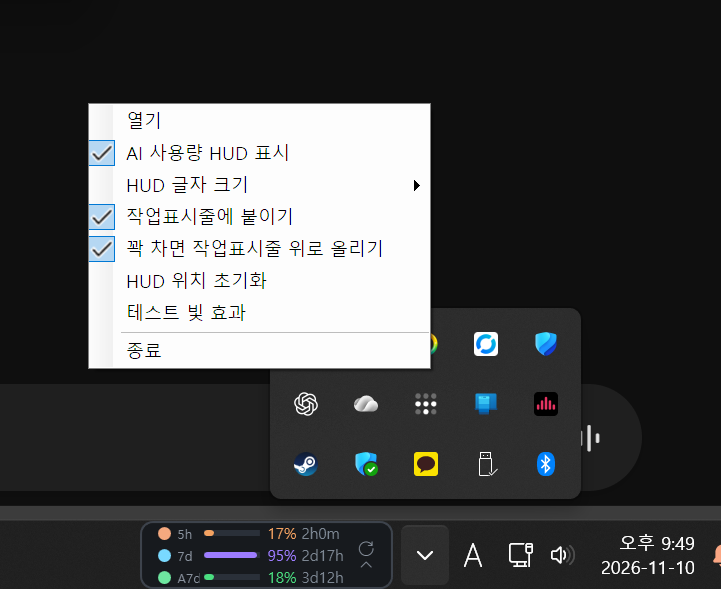
Attach the HUD to your taskbar and show just the limits you need. Check Codex, Claude, and Antigravity usage. Choose visible limits, colors, and text size.
Windows taskbar · Mac menu bar · AI usage HUD
Keep AI usage in your Windows taskbar or Mac menu bar. Expand the HUD for limits and reset times, and notice finished tasks through screen-edge light and notifications.
Both versions offer task alerts and a usage HUD. The always-visible display fits your operating system.
Attach the HUD to your taskbar and show just the limits you need. Check Codex, Claude, and Antigravity usage. Choose visible limits, colors, and text size.
See Codex and Claude usage and time until reset in your menu bar. Expand the floating HUD for details, and use completion notifications to return to the app you worked in.
Move the app from the DMG to Applications, then connect your tools in Get Started.
Download for Mac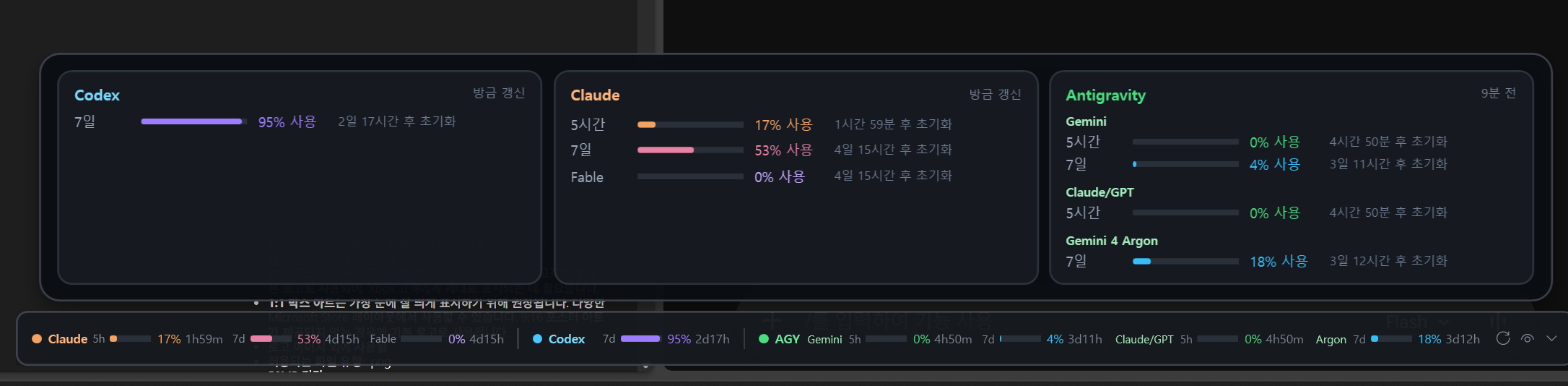
Sign in to the AI tools you want to connect first. AI subscriptions and additional usage are not included.
Install from Microsoft Store and launch EdgePulse from the Start menu. Check General & integrations, then use the tray menu to attach the HUD to your taskbar.
Open the DMG and move the app to Applications. Launch EdgePulse and connect Codex and Claude in Get Started.
If Codex requests approval, review and approve the EdgePulse hook in /hooks in the terminal. Connected tools can then signal finished tasks through light and notifications.
Instead of piling up in Notification Center and getting forgotten, it tells you once, right where you’re looking.
When a task finishes, light flows around the edge of your screen. Adjust its thickness, duration, flow speed, blinking, and brightness, or turn it off.
Recent notifications stack up as cards in the bottom-right corner. Keep them until you close them, or let them fade after a few seconds.
Use a notification to return to the related app and find its window. Opening a specific conversation and switching windows depend on the operating system, tool, and target app.
Windows uses the taskbar; Mac uses the menu bar. Expand the HUD to see more available limits and reset times.
Completion events arrive through local integrations on your computer. Usage queries may contact provider services. Mac also uses the internet to check for updates.
Windows can attach the usage HUD to the taskbar and supports Codex, Claude, and Antigravity. Mac offers menu bar usage with Codex, Claude, and Antigravity integrations. Both versions offer completion alerts and a usage HUD.
Launch EdgePulse and choose Attach to taskbar from its tray icon menu. Use Taskbar settings to adjust visible limits, colors, and text size.
Check the integration status in EdgePulse first. If Codex requests hook approval, open /hooks in its terminal, approve the EdgePulse entry, and check in a new session.
On Mac, enable live Claude usage in the Usage tab of Settings. This briefly runs Claude Code to obtain usage data. Windows automatically queries the signed-in Claude account limits. Available values depend on the account and query status.
No. EdgePulse is a separate utility for notifications and usage display. Install and sign in to the AI tools you want to connect, then configure their EdgePulse integrations.
EdgePulse or the connected AI tool may contact provider services to query account usage. Completion events use local integrations. Previous usage values may remain visible while offline or when a query is delayed.
On Windows, Microsoft Store manages updates. On Mac, follow the update notification and replace the app in Applications with the copy from the new DMG. Existing connections and settings are preserved.
Disconnect integrations in EdgePulse first. On Windows, remove it from Installed apps in Settings. On Mac, disable Launch at login and delete the app from Applications. Remaining Mac data is in ~/Library/Application Support/EdgePulse.
Pick the version for your computer.
SHA-256 514dc8178996ad308ad6f58415b47d86c7e2b3f4314ada2388452852d7aa669a
EdgePulse is an independent utility, not an official product of or affiliated with OpenAI, Anthropic, or Google.